How to Link Aadhaar with UAN Online Through EPFO Portal and UMANG App
EPFO has made Aadhaar linking mandatory for most digital services. Some methods require employer approval, while others allow direct authentication through the UMANG app. The rules change based on whether your details match, which is why incomplete or incorrect EPF Aadhaar linking remains common. This article explains how to link UAN with Aadhaar online, how to update Aadhaar details in EPFO, and how to verify your Aadhaar linking status in a few steps.
How to Link UAN with Aadhaar Online
To link your UAN with Aadhaar online, you can use either the EPFO Unified Portal, which requires employer approval, or the UMANG App, which allows direct linking through face authentication if your details match.
Method 1: Link Aadhaar with UAN Online Via EPFO Unified Portal (Employer Approval Required)
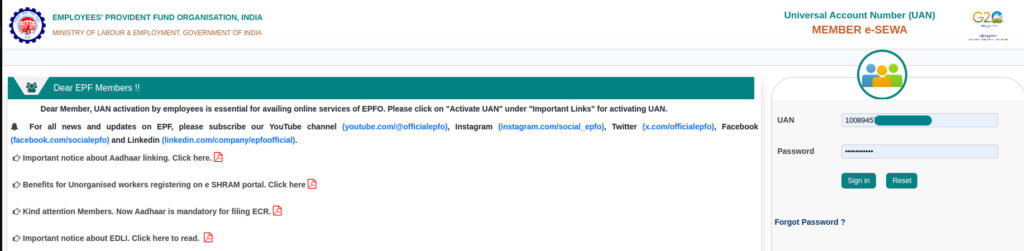
Step 1: Log in to the EPFO Member Portal using your UAN and password.
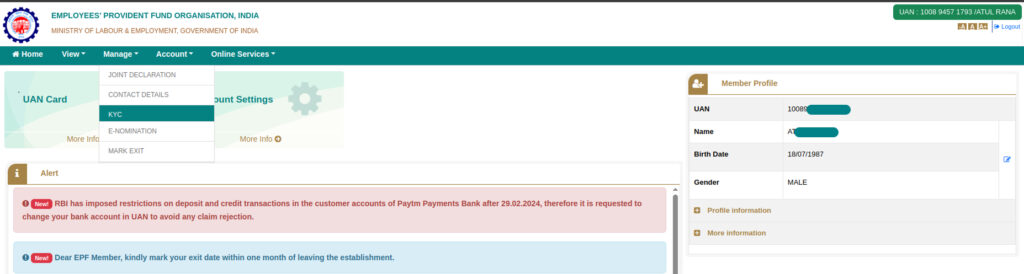
Step 2: Click on the Manage tab and select KYC to access your KYC details.
Step 3: Under the Add KYC section, choose Aadhaar, enter your 12-digit Aadhaar number, and save the details.
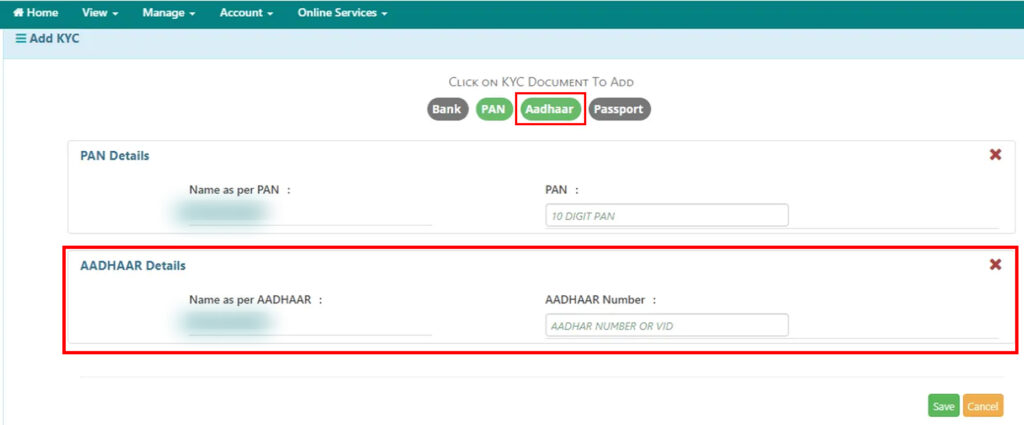
Step 4: Verify your Aadhaar by entering the OTP sent to your Aadhaar-linked mobile number.
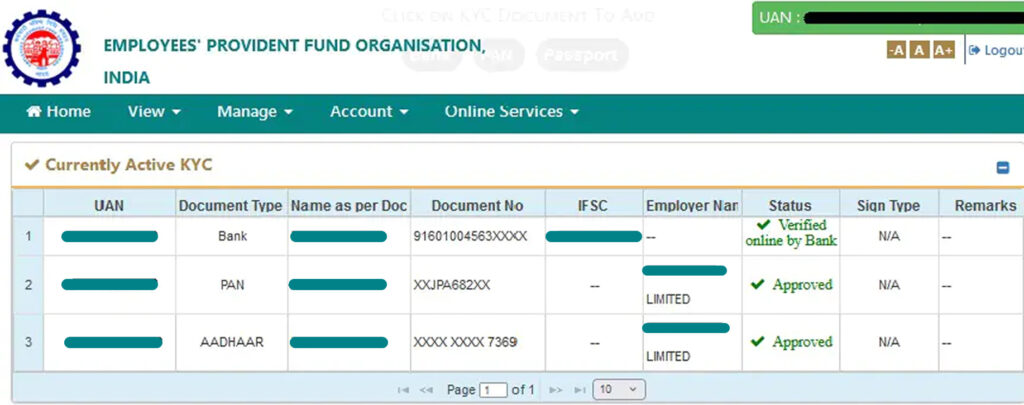
Step 5: Your Aadhaar details will appear under Pending KYC until employer approval is completed.
Step 6: Your employer approves the Aadhaar linking request through the Employer e-Sewa portal.
Step 7: After verification with UIDAI, the status updates to Verified by UIDAI.
Method 2: Link Aadhaar with UAN Online Via UMANG App (EPFO Mobile Application)
1. Download and install the UMANG app on your phone.

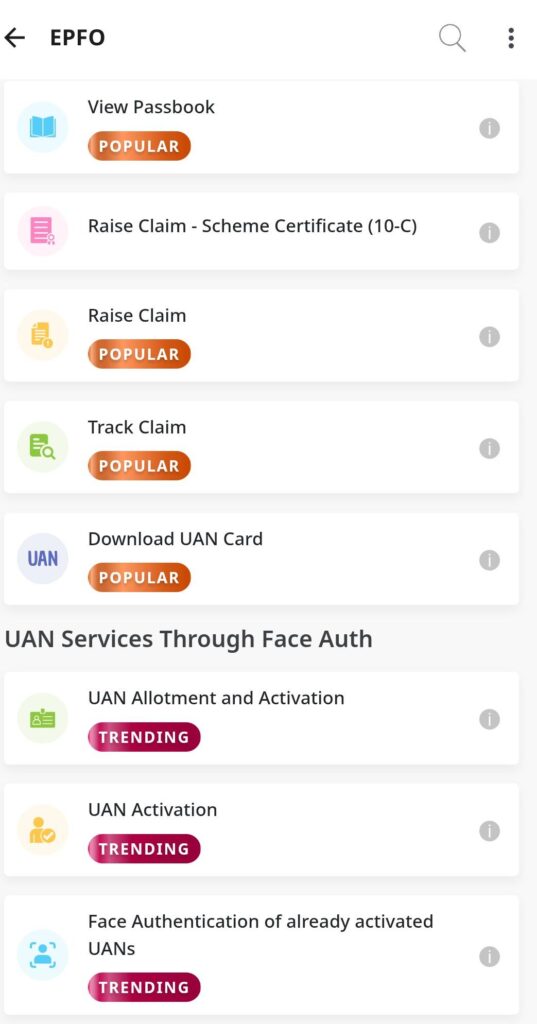
2. Open the app, go to EPFO Services, and select UAN Activation or Link UAN with Aadhaar.
3. Enter your UAN, Aadhaar number, and registered mobile number.
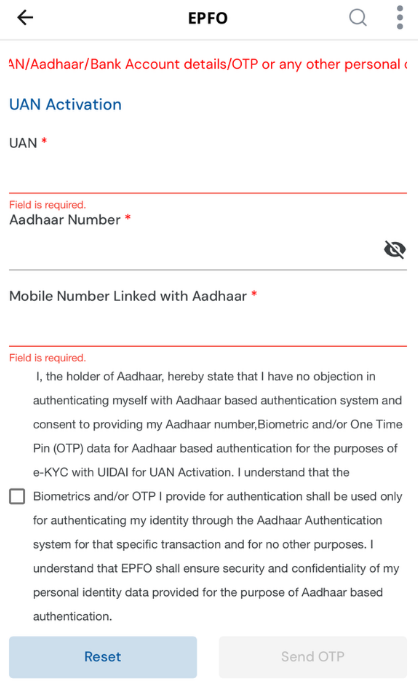
4. Complete OTP verification and face authentication using your phone camera or biometric device to link Aadhaar directly.
Method 3- Through EPFO e-KYC Portal (OTP Verification)
Follow these steps to link your UAN with Aadhaar online using OTP:
Step 1: Visit the official EPF website.
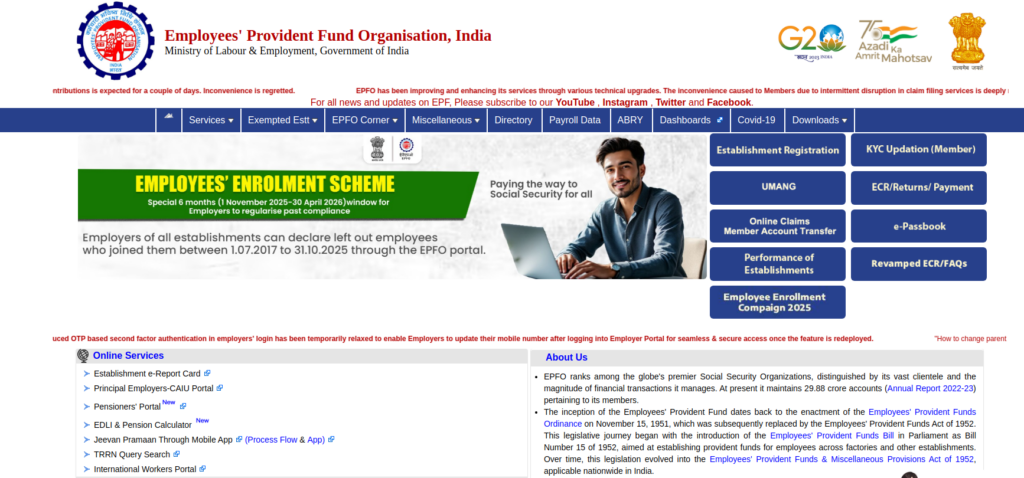
Step 2: Under Services, select For Employees
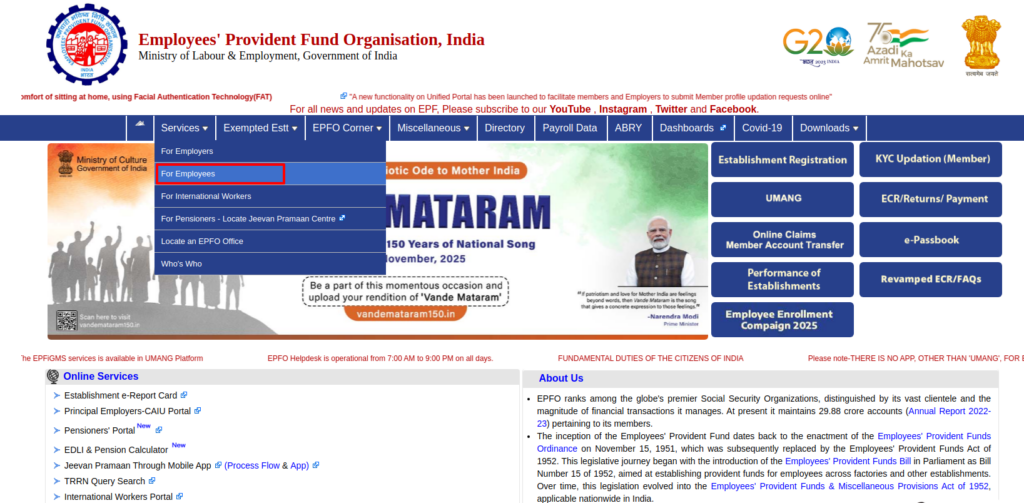
Step 3: Click on Member UAN / Online Service (OCS/OTCP)
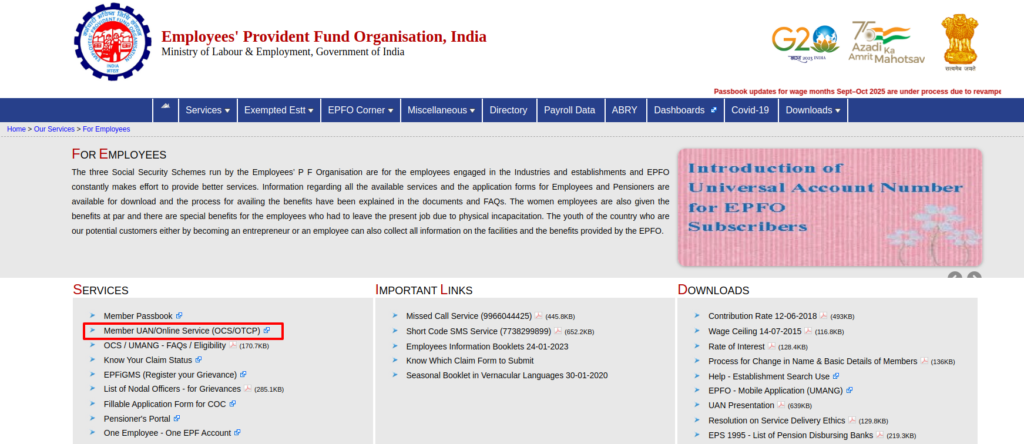
Step 4: Enter your UAN and registered mobile number to generate an OTP.
Step 5: Enter the OTP and click Confirm OTP to continue.
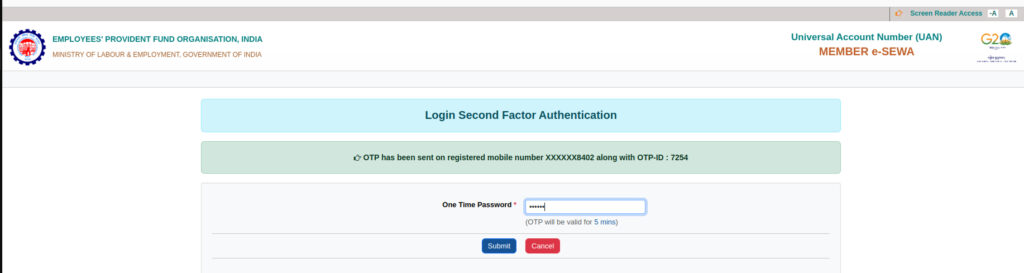
Step 6: Select your gender and enter your Aadhaar number.
Step 7: For Aadhaar verification, choose Using Mobile or Email-based OTP.
Step 8: An OTP will be sent to your Aadhaar-linked mobile number and email ID.
Step 9: Enter the captcha code and the OTP received.
Step 10: Click Submit. Once verified, your Aadhaar will be linked to your EPF account through OTP verification on the EPFO e-KYC portal.
Please note that for direct EPF Aadhaar linking, without employer involvement, your name, gender, and date of birth must match exactly in EPFO and Aadhaar records. You can track the Aadhaar linking status at any time using the Track e-KYC option on the EPFO Member Portal.
How to Link UAN with Aadhaar – Offline
To link your UAN with Aadhaar offline, you need to submit a physical Aadhaar seeding request at an authorised centre, after which EPFO verifies your details and confirms the linking via SMS.
- Get the Aadhaar Seeding Application form from your nearest EPFO office or a Common Services Centre.
- Fill in the form carefully with your UAN, Aadhaar number, name, and other required personal details.
- Attach self-attested photocopies of your Aadhaar card, PAN card, and document showing your UAN.
- Submit the completed form and documents at the EPFO field office or CSC outlet for verification.
- After verification by EPFO, you will receive an SMS confirmation on your registered mobile number once Aadhaar is successfully linked with your UAN.
- If your name, date of birth, and gender match exactly in both UAN and Aadhaar records, your employer can also seed Aadhaar through their portal without separate EPFO approval.
- In case of any mismatch in personal details, the employer must submit a Joint Declaration through the EPFO system to correct the records before Aadhaar linking can be completed.
How to Update Aadhaar Card in EPFO
Updating Aadhaar details in EPFO is different from linking Aadhaar with your UAN for the first time. If your Aadhaar is already linked but shows errors such as a name mismatch, incorrect date of birth, or gender mismatch, the update cannot be completed through OTP-based e-KYC alone.
As per official EPFO guidelines, Aadhaar corrections must be handled through the Joint Declaration (JD) process, with employer involvement and EPFO approval.
Method 1: For Corrections or Mismatches (Joint Declaration Process)
Follow these steps if your Aadhaar details in EPFO are incorrect or rejected.
Step 1: Download the Joint Declaration Form (Annexure I) from the EPFO website.
Step 2: Fill in the form with the correct details and attach self-attested copies of your Aadhaar card, UAN, PAN card, and a request letter explaining the correction.
Step 3: Get the form signed and stamped by your employer. If you are not currently employed, the form can be attested by your bank manager or an authorised official.
Step 4: Submit the completed form and documents at your nearest EPFO office.
Step 5: The Public Relations Officer (PRO) enters the details into the Joint Declaration functionality, after which the request is sent for approval at the APFC level.
Once approved, your Aadhaar details are re-verified with UIDAI, and the corrected information is updated in EPFO records.
Method 2: Using the UMANG App (Alternative Online Method)
This method works only when your Aadhaar details already match EPFO records exactly.
Step 1: Open the UMANG app and log in using your registered mobile number.
Step 2: Select EPFO services and go to e-KYC Services, then choose Aadhaar Seeding.
Step 3: Enter your UAN and generate an OTP for verification.
Step 4: Enter your Aadhaar number and complete the OTP verification sent to your Aadhaar-linked mobile number.
Key Point: For successful Aadhaar linking through UMANG, your name, date of birth, and gender in EPFO records must exactly match your Aadhaar details, as UIDAI data is used for validation.
How to Check EPF Aadhaar Link with UAN
You can check whether your UAN is linked with Aadhaar by logging in to the EPFO Member Portal or by using the UMANG App.
On the EPFO Member Portal (Recommended Method)
Step 1: Log in to the EPFO Member Portal using your UAN, password, and the OTP sent to your registered mobile number.

Step 2: Click on the Manage tab and select KYC.
Step 3: Check the Verified Documents section to see your Aadhaar status.
Step 4: If Aadhaar shows as Validated (DEMOGRAPHIC), your UAN is successfully linked.
Step 5: If Aadhaar appears under Pending KYC, the request is submitted but not yet approved.
Other Ways to Check Aadhaar Linking Status
- Open the UMANG app, go to EPFO Services, and check the status under UAN Activation or UAN Services.
- After logging in to the UAN portal, check the Profile Information section on the dashboard to see whether Aadhaar is linked.
If Aadhaar Is Not Linked
- Go to Manage > KYC, add your Aadhaar details under Add KYC, and submit the request for employer and EPFO approval.
Once Aadhaar is correctly linked and verified, managing EPF contributions, withdrawals, and updates becomes significantly smoother and faster.
Know the difference between EPF and PPF and understand which option is better suited to your savings and long-term financial goals.
Disclaimer- The rankings and figures in this article have been compiled from multiple verified reports, credible sources, and public financial data available as of 2026.
All values are approximate and may vary with newer updates, revisions, or changes in official records.
Aadhaar Card UAN Linking- FAQs
You can link Aadhaar to UAN by logging into the EPFO Member Portal, going to Manage > KYC, entering your Aadhaar number, and completing OTP verification. The request is approved by your employer or directly validated through eKYC or the UMANG app if the details match.
You can activate your UAN on the EPFO portal using your UAN or Member ID, PAN, name, date of birth, and a registered mobile number.
Open the UMANG app, go to EPFO Services, and select Aadhaar seeding or UAN activation.
Enter your UAN, mobile number, Aadhaar number, and complete OTP verification through UIDAI.
Log in to the EPFO Member Portal and check Manage > KYC or Profile Information for Aadhaar status. If it shows “Verified (DEMOGRAPHIC),” your Aadhaar is successfully linked with UAN.
UIDAI does not specify a fixed limit on how many Aadhaar numbers can be linked to one mobile number. However, EPFO allows only one mobile number per UAN for OTP-based services.
Log in to the EPFO Member Portal, go to Manage > KYC, and add Aadhaar, PAN, or bank details. Submit the details for employer and UIDAI verification to complete KYC linking
Aadhaar seeding with EPFO is mandatory for online claims, PF transfers, and employer ECR filings. Without Aadhaar linkage, many digital EPFO services remain restricted or unavailable.